
Showing two calendar widgets
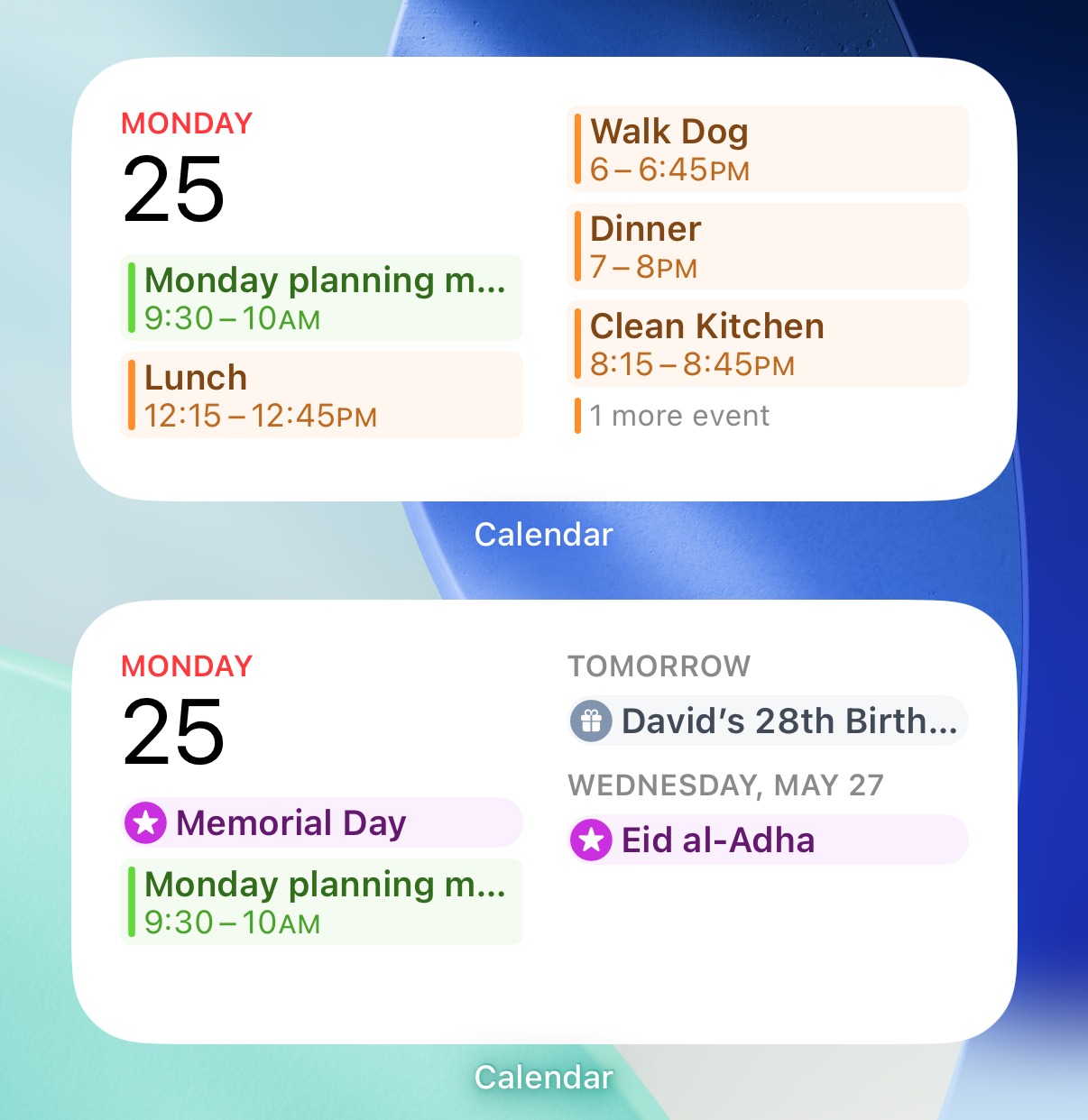
One of the things I do is have two different calendar widgets on my lock screen. One contains all of the things coming up, while the other shows everything that’s not from Penciletin. One shows what I should be doing now and next, and one shows the things that can’t be changed without letting someone down. While some things can be put off until later today, those that can’t (usually because someone is expecting me) need to be highlighted.
The calendar widget is customizable, so play around with it until you find what works for you.
The Secret of Alerts
There’s a thing you can do from alerts that not many people know about. If you long press on the alert, it will show more details and sometimes show options. For example, you can reply to a text from the lock screen, view photos, or whatever else makes sense for the app. Penciletin is no exception, you can schedule a task for the next day, or ask the AI to find a time for it later in the day. Check out what your alerts can do.
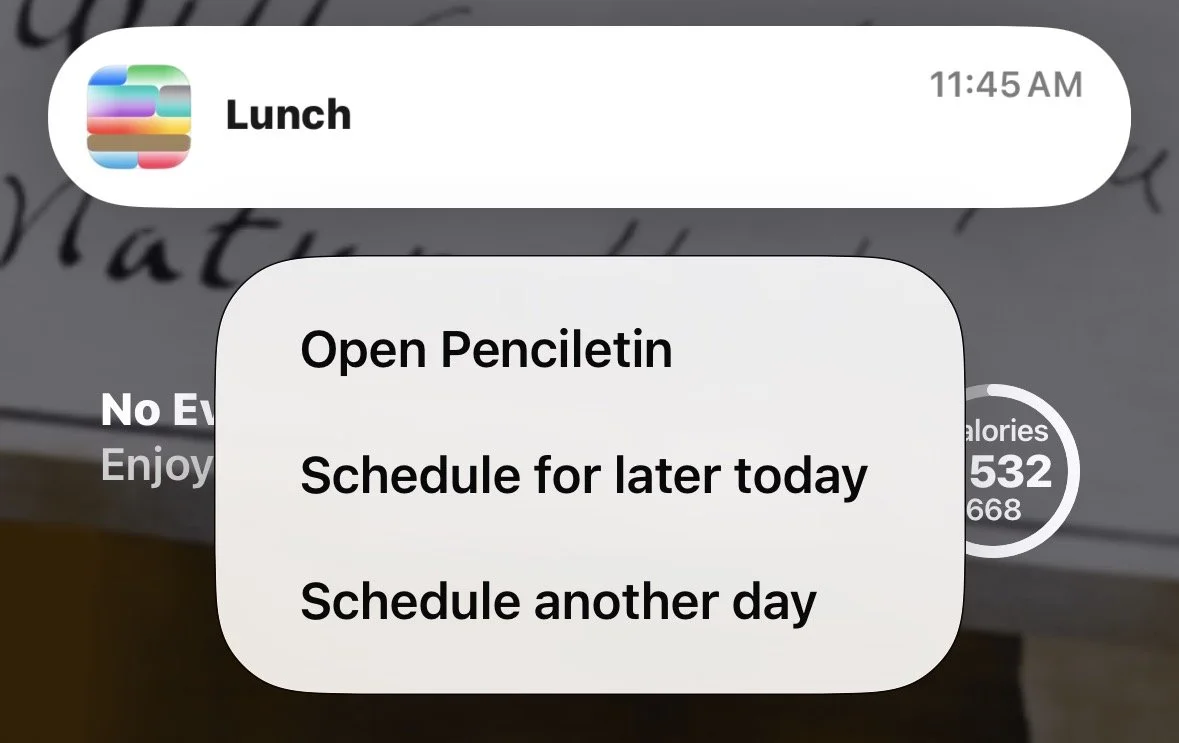
You can schedule a task for later from the lock screen.
They’re just suggestions
We recently had some feedback asking why Penciletin scheduled things the way it did. The user thought that there was some secret of the universe that a phone app had tapped into when it came to when it was time to do chores. The answer is simply that it made a mistake. There is a fundamental truth that you need to keep in mind:
Computers are frequently wrong
There are many things about you that Penciletin just doesn’t know. You might visit the gym almost every Wednesday, but if you hurt yourself this Tuesday, that changes things. And there’s no way for your phone to know that without invading your privacy.
Even when it’s a normal day, Machine Learning can only do so much. The patterns it’s following may not be real, and it might have just made a mistake.
So rearrange things how you want it. You are in control, and not your phone. It will make mistakes, and you need to fix it. Treat everything as a suggestion. As you use it, those suggestions will get better, but there will still be mistakes. Make sure to fix them, and Penciletin will do better in the future.
Keep breathing room in your schedule
When scheduling events, it’s important to give yourself a bit of buffer time. If something takes only 20 minutes, why do you need to schedule 30 minutes for it? Use that extra ten minutes for yourself. Take a break, have a snack, stretch a bit, practice mindfulness, or visit the restroom. Anything. If you don’t take a moment to relax, everything else will suffer. If you really need to keep going, just start the next thing a little earlier.
Also, when deciding how long to schedule something, plan for the worst case scenario. Traffic jams, computer problems, or other unexpected delays can throw everything else off. If something usually takes only 30 minutes, but can rarely take 45, then it will take longer on the exact days that you are busiest. Murphy’s Law applies to your calendar, so it’s better to be safe than sorry!